
Help
How to get the most from CueCurve, and what to do if something isn't working.
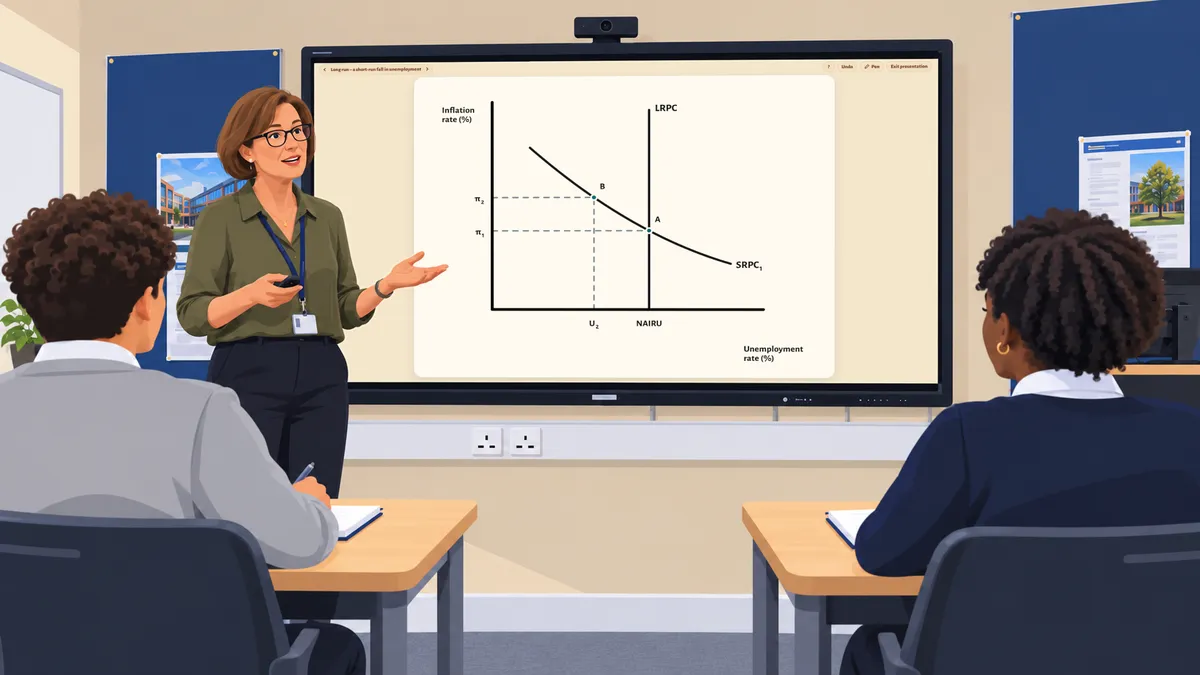
Getting started: your first lesson in five minutes
Four diagrams are free, with no account: Market Equilibrium, AD/AS Model, Oligopoly and Phillips Curves. The others need you to be signed in, at a school with a current licence (see Pricing). These steps use Market Equilibrium, so you can try them now at cuecurve.co.uk/diagrams.
-
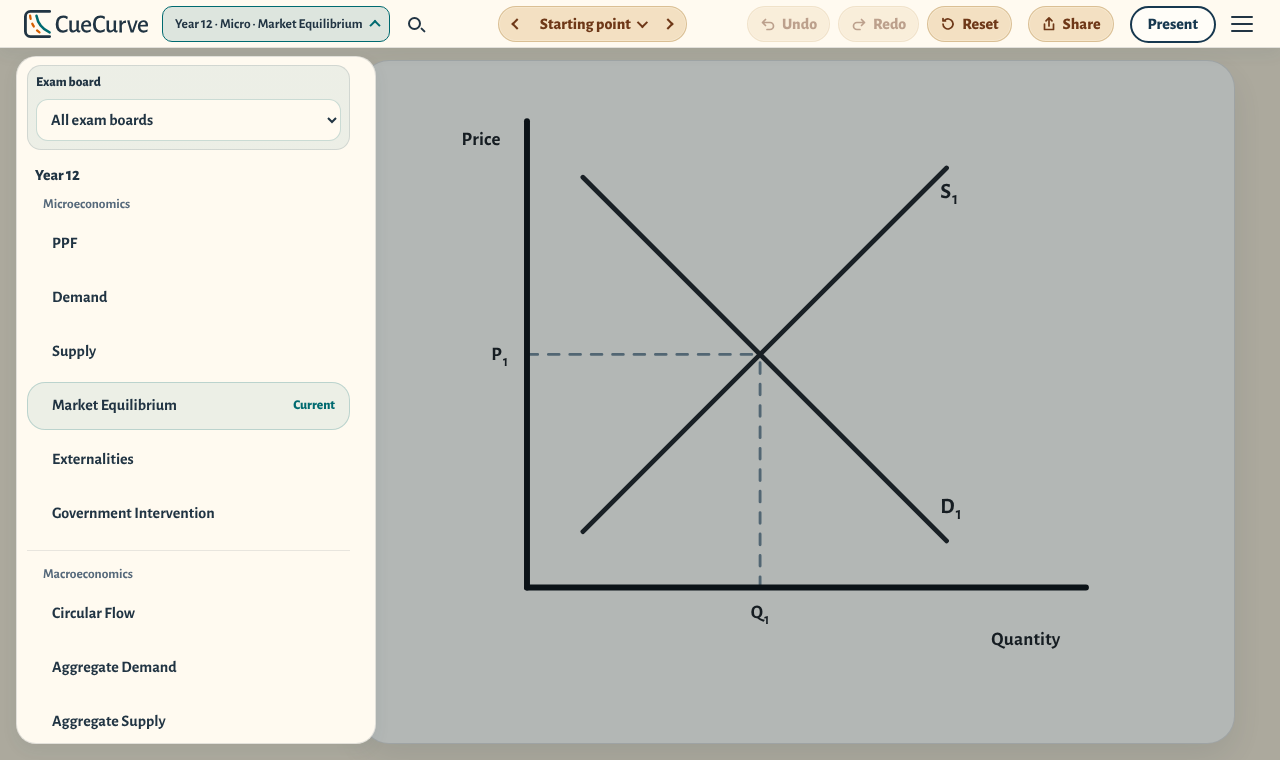
Choose a diagram
Press the menu at the top left – it shows the year and the diagram you're on – to see every diagram, grouped by year and topic. Choose your board under Exam board to arrange the list by your specification.
-
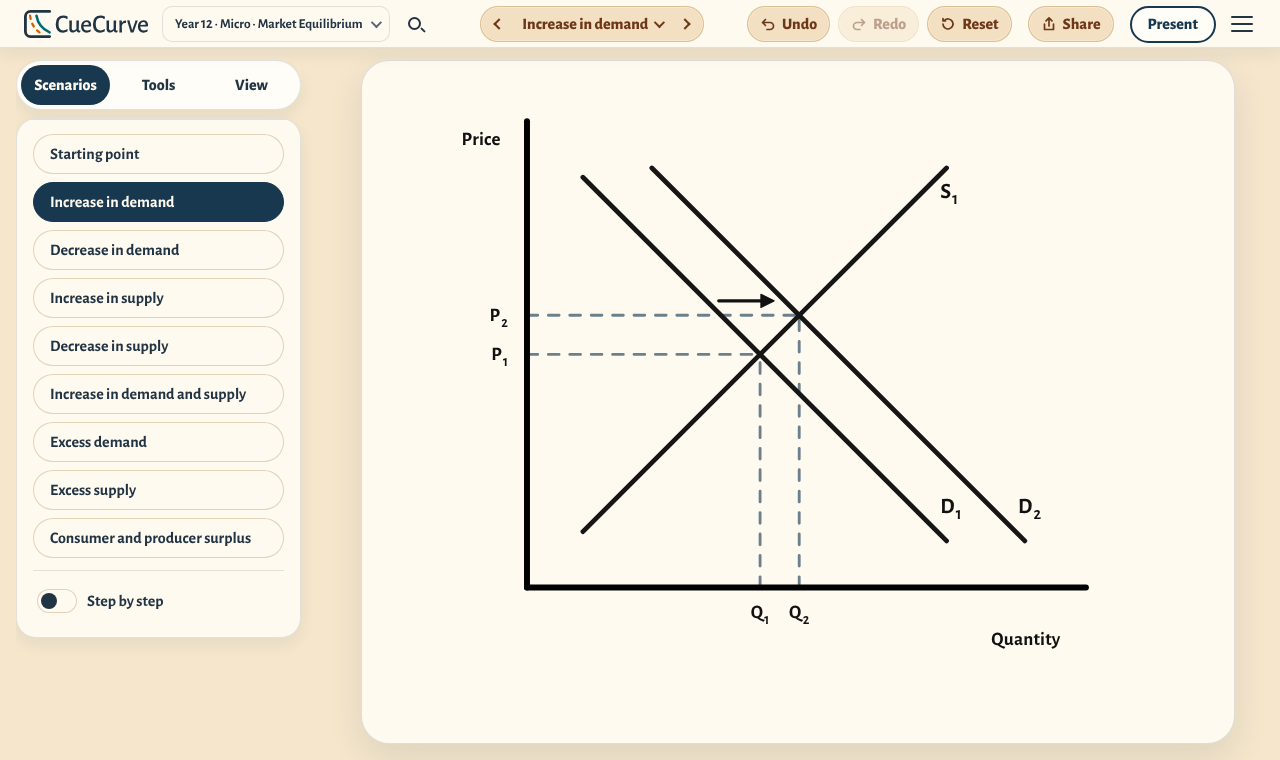
Set up a scenario
Each diagram opens on its Scenarios tab, beside the diagram. Press one, such as Increase in demand, and the diagram sets itself up, with an arrow showing the shift. To reveal it in stages as you explain, turn on Step by step at the foot of the list.
-
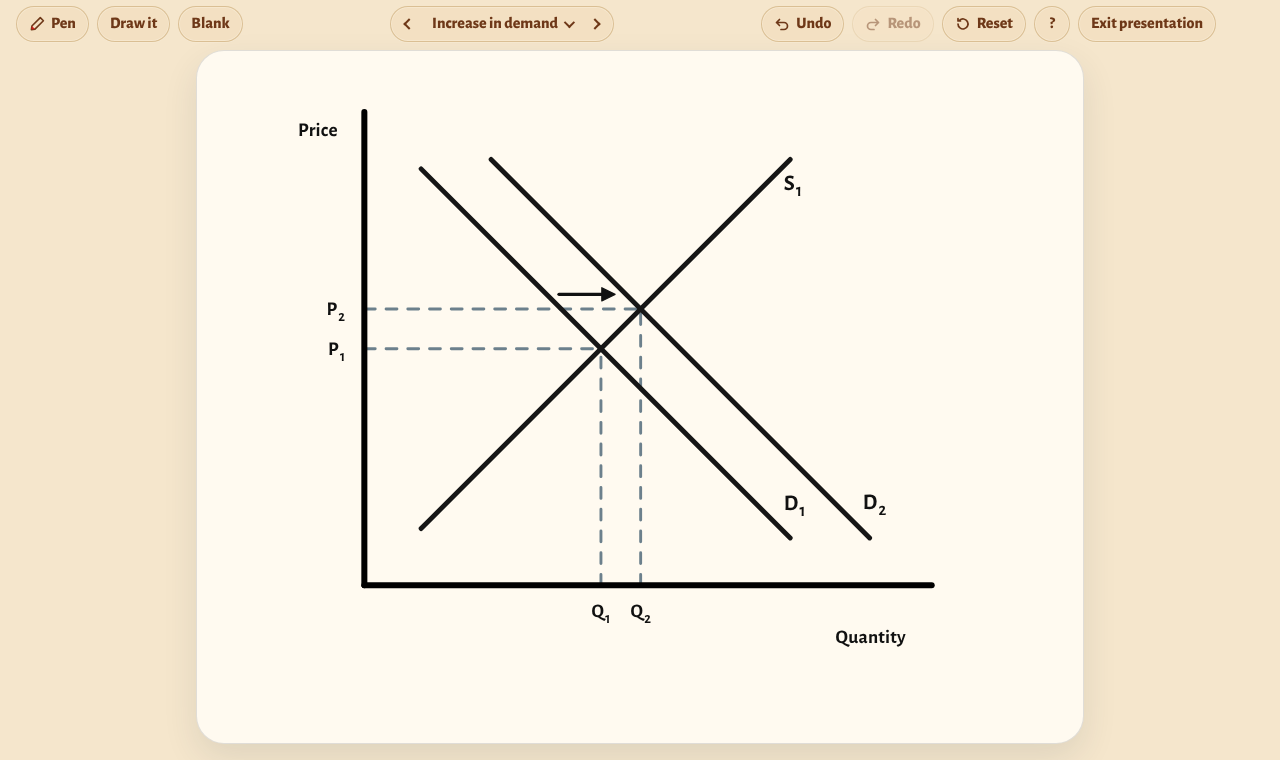
Present it to your class
Press Present, at the top right, to show the diagram on its own on the classroom screen. The arrows either side of the scenario's name step through the scenarios, and so does a clicker. Press Pen to draw on the diagram, Draw it to build it line by line, and ? for every key. Press Exit Present or Esc to leave.
-
Take it into your slides
Press Share, just left of Present, to copy a picture for a slide or worksheet, copy a link to this exact diagram, show a QR code, or print a practice sheet. See Sharing and exporting.
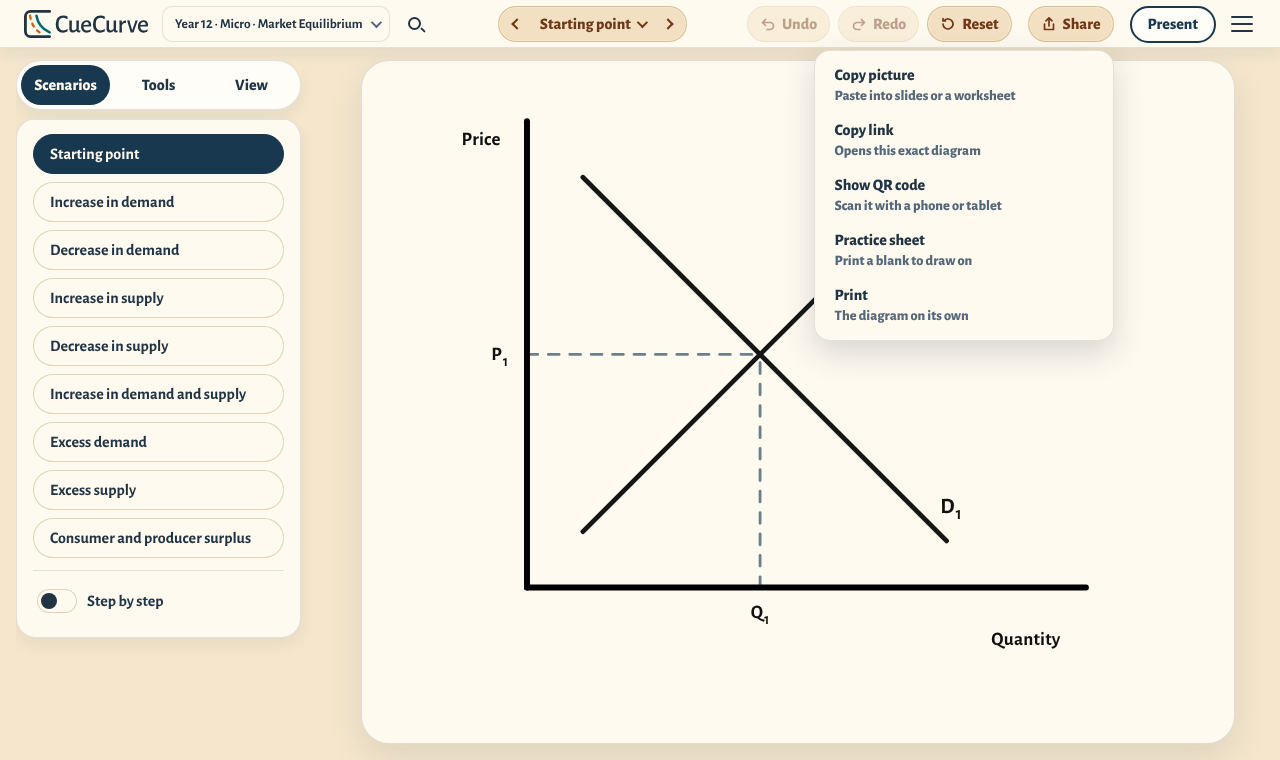
The Tools tab holds the diagram's own controls, such as moving a curve, and the View tab changes how it looks: see Using a diagram.
Questions schools and colleges often ask
The questions heads of economics, finance offices and IT teams ask us most. If yours isn't here, email hello@cuecurve.co.uk.
About CueCurve
What is CueCurve?
Interactive A-level Economics diagrams for teachers to present in lessons, instead of redrawing them on the board. You shift the curves, step through common scenarios such as a subsidy or a fall in demand, and show the diagram full screen to your class. Diagrams are drawn as they are in exams: black lines on a plain background, with no grid lines and no extra numbers (you can switch on coloured curves if you'd like). You can see a picture and description of every diagram before you buy.
Which exam boards does it cover?
A-level Economics for Edexcel A, Edexcel B, AQA, OCR, Eduqas, WJEC, Cambridge International and Edexcel International. Choose your board under Exam board in the diagram menu, and the list is arranged by year and topic for your specification.
CueCurve isn't made for GCSE or IB, but many of the diagrams those courses use are here too, so do have a look: the four free diagrams are a good place to start, and every diagram is listed here. If a diagram doesn't match the way your board expects it to be drawn, email us and we'll look at it.
Can we try it before we buy?
Yes. Four diagrams are free, with no account: Market Equilibrium, AD/AS Model, Oligopoly and Phillips Curves. Open them at cuecurve.co.uk/diagrams. If you buy and CueCurve isn't right for your school, tell us within 30 days of your first paid licence starting and our 30-day refund promise means you get your money back.
Who's behind CueCurve?
CueCurve is run by CueCurve LTD, a UK company (company number 17542571). It was founded by Tim Boughen, an economics teacher with 20 years in UK state schools, so that teachers have diagrams that match the ones students draw in the exam. Tim is the company's director, and you can check the company's details on Companies House. Read our story.
Do students need accounts?
No. Accounts are for adult school staff only. CueCurve is designed for teachers: you're the expert at explaining a diagram, and CueCurve is a tool to help you explain it. Your class sees the diagrams on your screen, and you can use them in your own worksheets, slides and documents, including on your school's learning platform. Please don't share your account with students, because it's a staff account.
Buying and paying
How much does it cost?
£99 a year for your department, with every diagram. CueCurve LTD isn't registered for VAT, so there's no VAT to add: £99 is the full price, and there's no VAT number on our invoices.
How many licences do we need?
One per school or college, however many sites it has. In a multi-academy trust or federation, each school needs its own licence.
How do we buy?
Press Buy for your school on the Pricing page. Anyone at the school can fill in the short form: your school's name and postcode, and your lead teacher's email address. The lead teacher, usually the head of economics, looks after CueCurve for the school and needn't be the person paying. Then choose to pay by card now or by invoice to your finance office. Card payments go through Stripe's secure page, and for a school with no current access, access starts as soon as the payment goes through.
Can we pay by invoice, with a purchase order number?
Yes. Choose to pay by invoice, enter your finance contact's name and email address and, if you have one, your purchase order (PO) number, and tick to confirm you're authorised to order for the school. We then email the lead teacher a link to confirm the order, unless they placed it themselves while signed in. Once they confirm, we email the invoice to your finance contact, payable within 30 days by card or bank transfer.
The invoice shows our company details and your PO number. If you chose your school from our list, it also shows the school's reference number (URN in England, school number in Wales) and its trust, if it's in one.
When does access start if we pay by invoice?
For most schools, as soon as the invoice is issued; otherwise when it's paid. The form tells you which before you order, and you can pay by card instead to start today. Either way, the licence runs for 12 months from the day access starts.
What happens if an invoice isn't paid on time?
Nothing changes straight away. Stripe sends your finance contact reminders, and the Your school page shows the date access would pause. From a month before that date, signed-in teachers see a message to pass to your finance office, and lead teachers get an email a week before. If the invoice is still unpaid 60 days after its due date, the school's paid diagrams pause until it's paid, and they come back as soon as it is. For a renewal invoice the date is later: see Invoices under For lead teachers. The four free diagrams stay open throughout. If your access is waiting for payment, it simply starts when the invoice is paid.
Can I buy it myself, with my own card?
Yes. Any teacher can buy, even if you're the only economics teacher at your school. Stripe emails a receipt to the address entered when paying, which you can use for an expenses claim. If your school needs anything more, email us. The licence belongs to the school, not the teacher who paid, so colleagues can join you.
I'm a private tutor. Can I buy?
Not yet: licences are for schools and colleges. If you tutor A-level Economics, email hello@cuecurve.co.uk and we'll let you know if we offer a licence for tutors. The four free diagrams are open to everyone in the meantime.
Do you need to be set up as a supplier?
Your school may need to add us as a supplier first. Our details are on every quote and invoice: CueCurve LTD, registered in England and Wales, company number 17542571, registered office 71–75 Shelton Street, Covent Garden, London, WC2H 9JQ, not registered for VAT. Please pay using the details on the invoice itself, by card or bank transfer. If your school needs us to fill in a supplier form, email hello@cuecurve.co.uk and we'll complete it.
It says our school already has a licence, but we didn't buy one
Choose Tell CueCurve this wasn't us under the message, or email hello@cuecurve.co.uk with your school's name and postcode. We'll check who ordered it and, if it wasn't your school, sort it out so you can buy your own.
What's your refund policy?
If CueCurve isn't right for your school, tell us within 30 days of your school's first paid licence starting and we'll refund you in full, or cancel your invoice if it's unpaid. No questions asked, and no form to fill in: any lead teacher, or whoever paid, can email hello@cuecurve.co.uk with the school's name. The promise covers a school's first paid year, including after free access, not renewals. The full detail is in our refund policy.
Will the price go up?
The price is £99 a year. If it ever changes, we'll tell you before your next renewal, so it never changes part-way through a licence.
Can schools in Scotland, Northern Ireland or outside the UK buy?
Schools anywhere in the UK can buy. Our school search lists schools and colleges with sixth forms in England and Wales; if yours isn't listed, choose My school isn't listed and type its name and postcode. Paying by card then starts access straight away; paying by invoice starts it when the invoice is paid. We can't sell to schools outside the UK just yet: choose My school is outside the UK on the order or quote form, tell us where your school is, and we'll email you when you can buy.
In the classroom
Does anything need installing, and which devices does it work on?
Nothing needs installing: CueCurve runs in a web browser. Use an up-to-date browser such as Chrome, Edge or Safari, on a laptop or desktop, an interactive board, a tablet or a phone. You can also sign in at home to plan lessons, as long as it's for teaching at your school.
Can the back of the room read it, and is CueCurve accessible?
For the back of the room, make labels and lines bigger with Labels and lines in View and export; you can also change the background tint or switch to black and white. You should be able to use CueCurve with a keyboard alone (apart from drawing with the pen in Present), at up to 400% zoom (on a laptop at 400%, Present is the first item in the ☰ menu) and with Windows contrast themes. If you control your computer by voice, you can turn off Present's one-key shortcuts from its ? button. It partly meets the accessibility standard UK schools work to (WCAG 2.2 AA). Our accessibility statement lists what isn't right yet, such as how little screen readers are told about some diagrams, and how we're fixing it.
Does it work without an internet connection?
No, CueCurve needs an internet connection. If your school's connection is unreliable, copy the diagrams you need into your slides beforehand as a back-up.
Data protection and IT
What data do you hold, and do we need a data processing agreement?
We don't ask schools for any pupil information – no names, classes, work or marks – and pupils don't have accounts. For pupils and anyone else just visiting, the website handles only the short-lived technical information our privacy notice describes. We hold very little about staff: mainly each teacher's email address – usually their school address – which school they belong to and whether they're a lead teacher. Our database is in London. CueCurve LTD is the data controller for this, not your school's processor, because we decide why and how it's used, so you don't need to sign a data processing agreement before buying; if your policy asks for something in writing, we'll send a short signed statement. Our data protection page for schools lists everything we hold, the suppliers who process it for us and where, and how long we keep it.
Is it secure, and will you fill in our questionnaire?
Teachers sign in with a one-time code sent to their email address, or with their Microsoft or Google account. There are no separate CueCurve passwords. Data is encrypted in transit and at rest, each school can see only its own teachers, and card details go straight to Stripe and never reach CueCurve. We don't use advertising or tracking cookies, and we never sell data or use it to train AI. We're registered with the ICO (C2073447). If your school has its own questionnaire, email hello@cuecurve.co.uk and we'll complete it.
Using a diagram
Beside the diagram are three tabs: Scenarios, Tools and View. On a phone or an upright tablet they sit below the diagram instead.
Scenarios
The Scenarios tab lists common set-ups, such as a tax or a subsidy: press one to show it. Starting point, at the top, takes you back to the plain diagram. The scenario's name also sits in the middle of the top bar: press it for the same list, or use the arrows either side to step through.
Turn on Step by step, at the foot of the list, to reveal a scenario in stages: press Next step for each stage, or Show all to finish it.
Tools: moving curves and showing extras
The Tools tab holds the diagram's controls, in the same order on every diagram: Set-up (the kind of diagram, where there's a choice), Curves, Show (extras you can switch on, such as guides or welfare areas) and Dragging a curve. Some diagrams have one more section, such as Policy or Points.
To move a curve, select it under Curves, or click it on the diagram, then use its buttons or the arrow keys. On many diagrams you can also drag it. Click empty space on the diagram, or press Esc, to unselect it.
Presenting to the class
Press Present, at the top right on a laptop or larger screen, to show the diagram on its own. The scenario's name is in the middle of the top bar: press it to pick another, or use the arrows either side. The controls fade after a few seconds and come back when you move the mouse. To leave, press Exit presentation or Esc. On a phone there's no Present button: use a laptop, tablet or the classroom computer to present.
While presenting, press Pen (or P) to draw on the diagram, and Blank (or B) to blank the screen while the class thinks; any key brings the diagram back. Press ? for the full list of keys, which also work from a clicker.
Draw it: building a diagram line by line
Draw it, in the View tab, draws the diagram one line at a time, in the order you'd draw it at the board, with a caption for each step. Choose Line by line to press Next after each line, or Play it all to let it draw itself. In Present, Draw it (or D) starts line by line, and its Play button draws the rest. Either way, you can stop at any point and show the whole diagram.
Undo and starting again
Undo and Redo (Ctrl+Z and Ctrl+Y) are in the top bar, beside Reset, which puts the diagram back as it was when you opened it. On a phone they're at the top of the Tools tab.
Signing in
There are no passwords. Press Sign in at the top right, then either press Sign in with Microsoft or Sign in with Google and use your account, or enter the email address your lead teacher added, press Send code and type in the six-digit code we email you. If it's expired, press Send a new code. To sign out, press Account at the top right (on a phone, the person icon), then Sign out.
My code hasn't arrived
- Give it a minute or two, then check your spam or junk folder.
- School email filters sometimes hold back new senders, and some put the email in quarantine rather than junk, where you can't see it. Ask your IT team to release it and to allow email from cuecurve.co.uk – that's the surest fix for everyone at your school. Adding no-reply@cuecurve.co.uk and hello@cuecurve.co.uk to your safe senders can help too.
- Or don't wait: press Sign in with Microsoft or Sign in with Google and use your school account instead. They need no code.
- Check the address you typed. If it's wrong, press Use a different email.
- If CueCurve says there have been too many attempts, wait a minute and try again.
If it still hasn't arrived, contact us.
A free access link
Open the link, sign in with your school email and choose your school, then press Claim free access. Your school gets every diagram for the time the link says, and you become its lead teacher.
For lead teachers
Lead teachers look after CueCurve for the school, on the Your school page: press Account at the top right, then Your school.
Adding and removing colleagues
Type or paste colleagues' email addresses – school addresses where they have them – under Add a teacher by email address (separate several with commas or new lines) and press Add teacher. We email them to say they've been added, and they can sign in straight away. To remove someone, press Remove (a lead teacher steps down first). The list holds up to 15 teachers; if you need more, contact us.
Getting your department started
Once you've added your colleagues, press Account, then Department training. Choose your exam board, say how many teachers will do the micro and macro treasure hunts, and print a plan for a 30-minute team meeting for you and carefully designed tasks that take each teacher through the features they'll use most in lessons. Each teacher's pages come out together, ready to hand round. The last task has each teacher save a diagram and email you its link, so you know everyone has finished. Department training is for teachers at a school with a licence; open it here.
Making another teacher lead teacher
Press Make lead teacher next to a colleague; a school can have more than one. To hand over, make someone else lead teacher, then press Step down as lead teacher.
Renewing
A licence lasts 12 months and doesn't renew automatically. From 30 days before it ends, lead teachers get reminders and signed-in teachers see a notice. You can renew on the Your school page from 60 days before, by card or invoice, and lose nothing: the new year starts when the current one ends.
If the end date passes, access carries on for 14 days. After that, the school diagrams lock until you renew, but your teacher list is kept for 12 months. If you renew after the 14 days, the new year starts on the day you renew, so you don't pay for the gap.
Quotes
Choose Get a quote on the pricing page. We email it as a PDF, valid for 30 days, and its Order from this quote link orders at the quoted price. A quote isn't an invoice, so please don't pay against it.
Invoices
Invoices go to your finance contact by email, through Stripe, payable by card or bank transfer within 30 days. If one stays unpaid, CueCurve shows the date access will pause, 60 days after the due date, with a message for your finance office. For a renewal invoice, it's 60 days after the due date or 60 days into the new licence year, whichever is later. For a copy of an invoice, contact us.
Deleting your account
Press Account at the top right, then Your school. At the foot, press Delete my account and type your email address to confirm. Your account is deleted straight away and can't be restored. Your school's orders and invoices are kept, as the law requires; your account is unlinked from them, though an order keeps the lead teacher's email address as part of the financial record. While your school has a current licence, its only lead teacher needs to make another teacher a lead teacher first; if you can't, email hello@cuecurve.co.uk and we'll deal with it.
If something isn't working
A diagram won't load
Press Try again, then Reload page if that doesn't work. This can happen when CueCurve has been updated while your tab was open. If you see "Sorry, this diagram stopped working", press Reset diagram.
"This diagram needs a school licence"
You're signed in, but CueCurve can't find a current licence for you. The message says why. Usually:
- your lead teacher hasn't added the address you sign in with;
- your school's licence has ended: a lead teacher can renew it;
- an invoice hasn't been paid: your finance office can check;
- your school's access is paused: your lead teacher can contact us.
Something on a diagram looks wrong
Open the View tab and press Report a problem with this diagram, at the bottom. Say what looks wrong, such as a label, a curve or a scenario step. The diagram is sent with your report exactly as it appears on your screen, so we'll know what settings you used. Add your email address if you'd like a reply.
The page looks wrong
Reset your browser's zoom with Ctrl and 0 (Cmd and 0 on a Mac), then reload. For bigger labels at the back of the room, use Text and line size in the View tab. If it still looks wrong, tell us your browser and device.
Contacting us
Email hello@cuecurve.co.uk. We aim to reply within two working days.